










How to add Kryptex to Windows 10 Defender exclusion?
Many antivirus programs can disrupt the correct functioning of the Kryptex App. To ensure that your antivirus doesn't hinder Kryptex's operation, you should exempt Kryptex files from being scanned by the antivirus software.
Add Kryptex to Windows 10 Defender exclusion
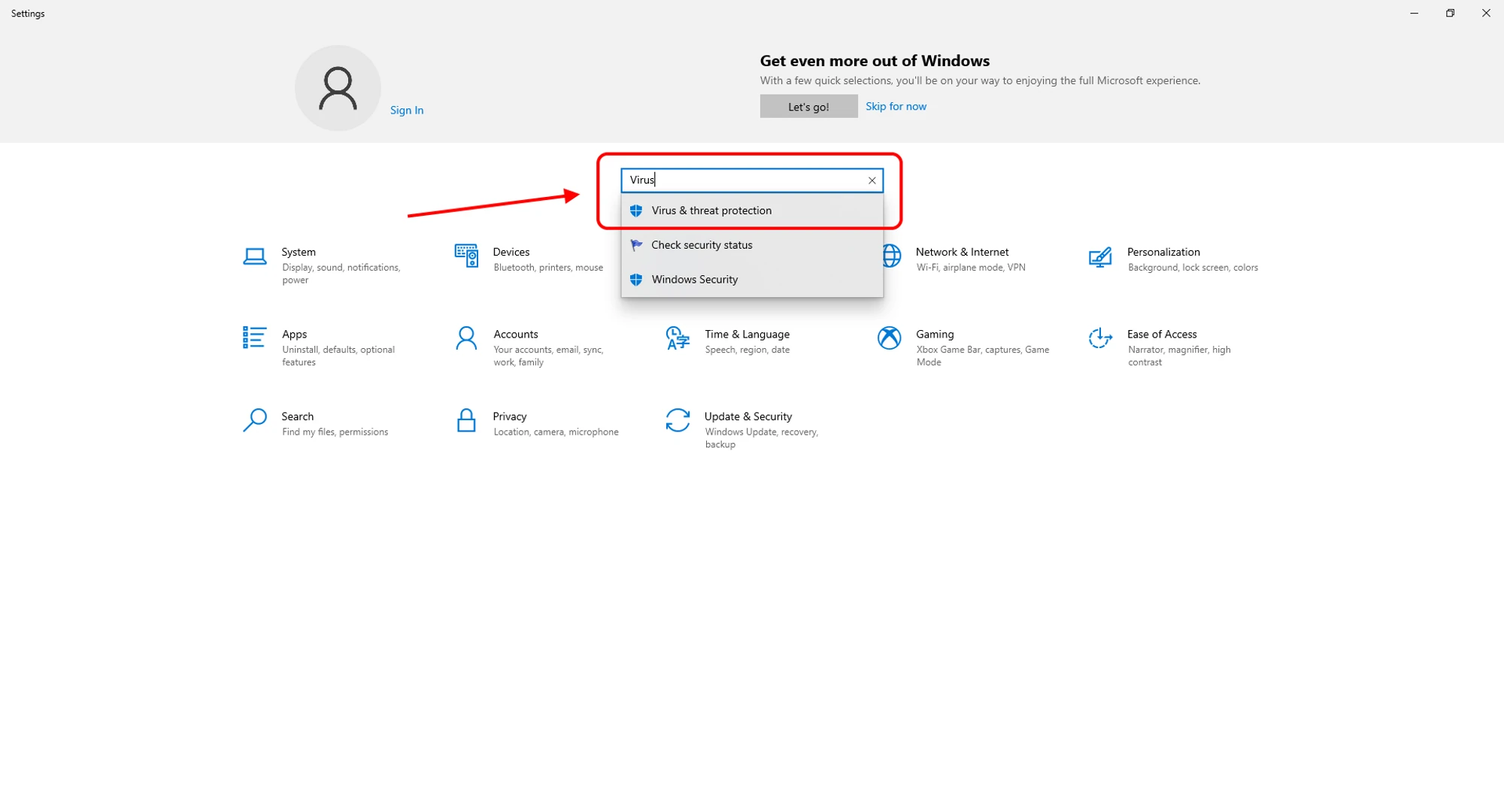
- Open the “Start” menu and choose “Settings”.
Start entering “Virus & threat protection” in the search bar and choose the relevant item from the list.
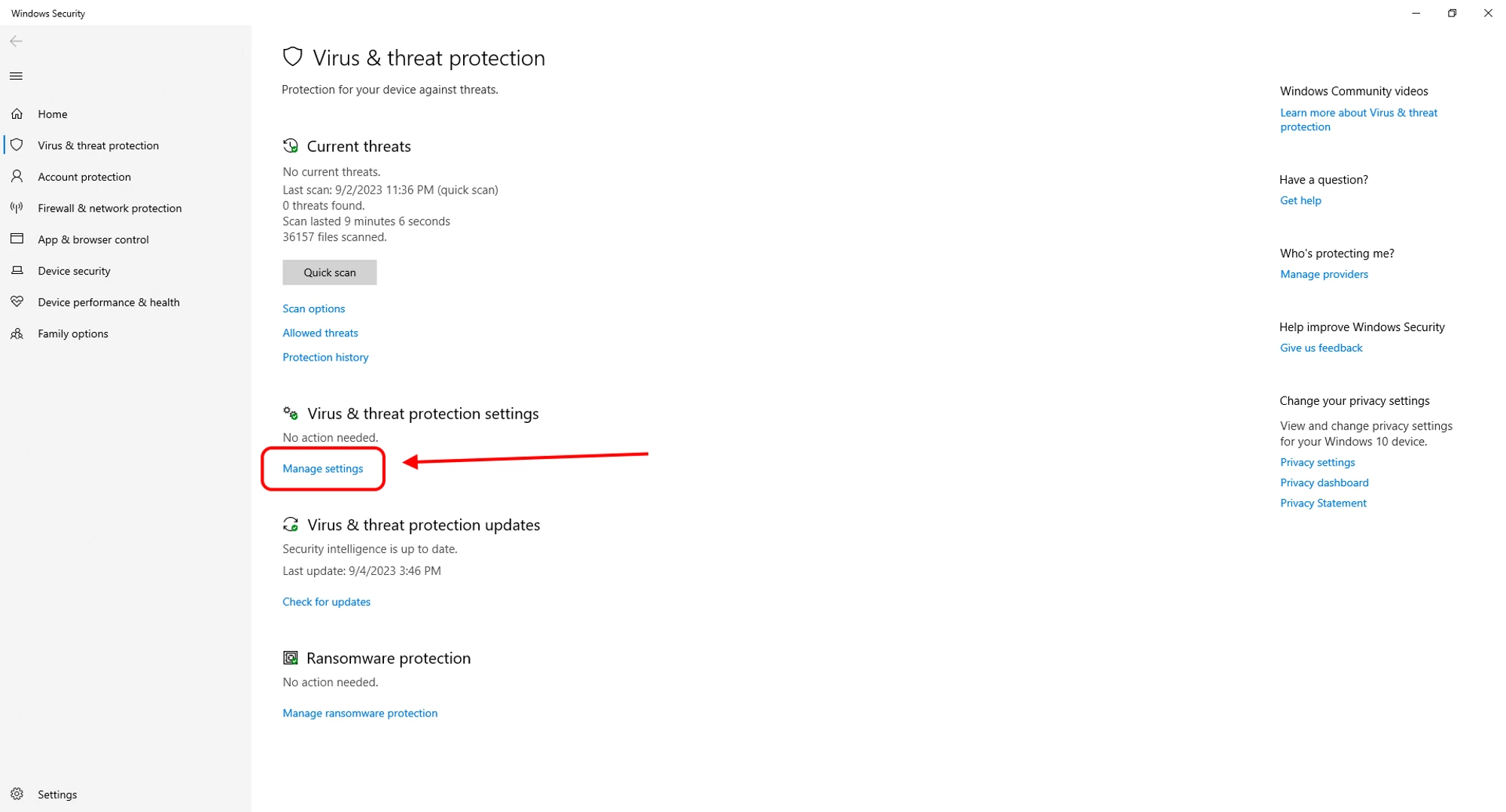
Open the menu, and find the option "Virus & threat protection settings". Then, click on "Manage setting”.
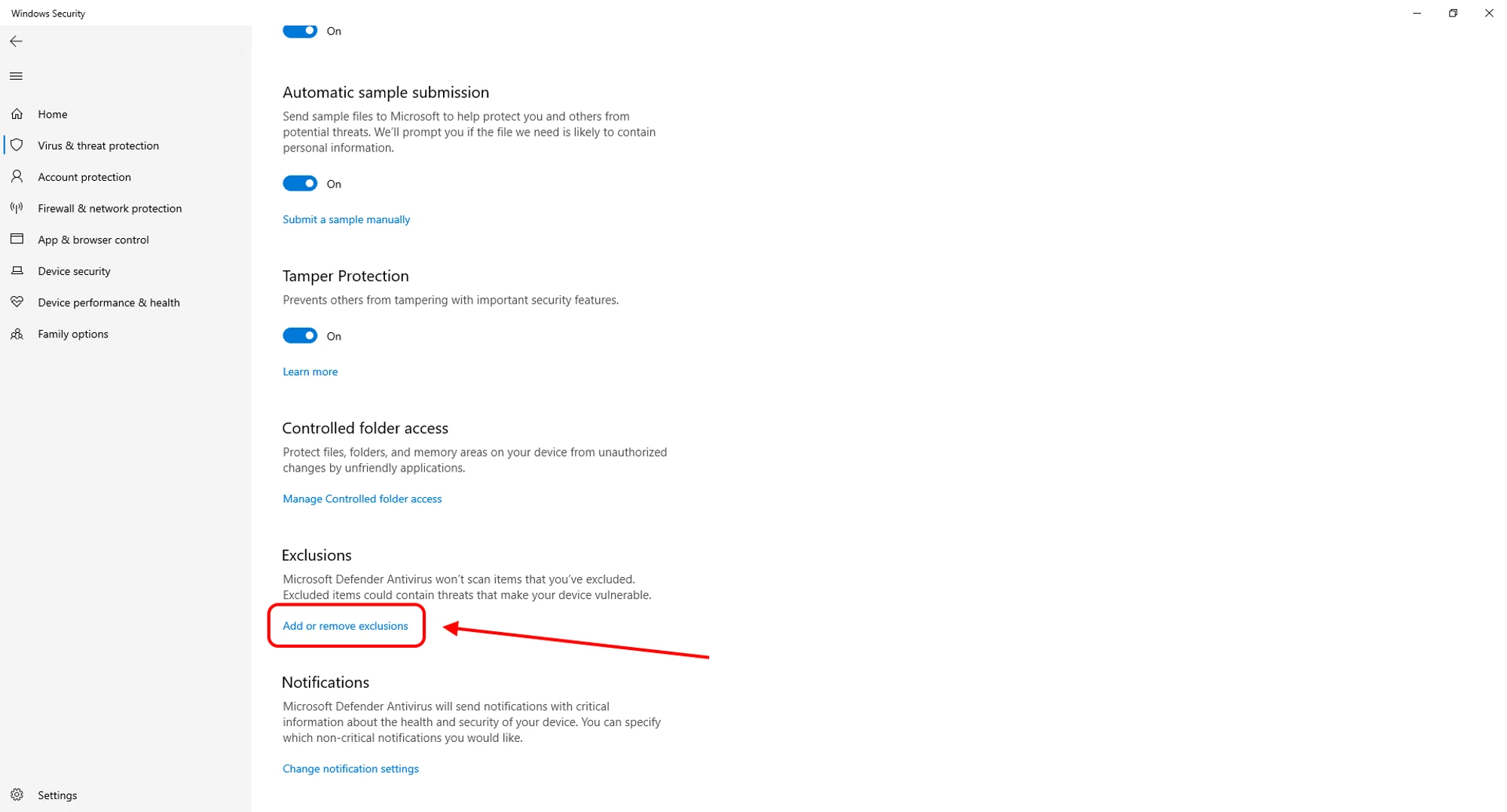
At the bottom of the next page, find the “Exclusions” settings. Click “Add or remove exclusions”.
Click "Add an exclusion", select "File" or "Folder". Specify multiple paths for:
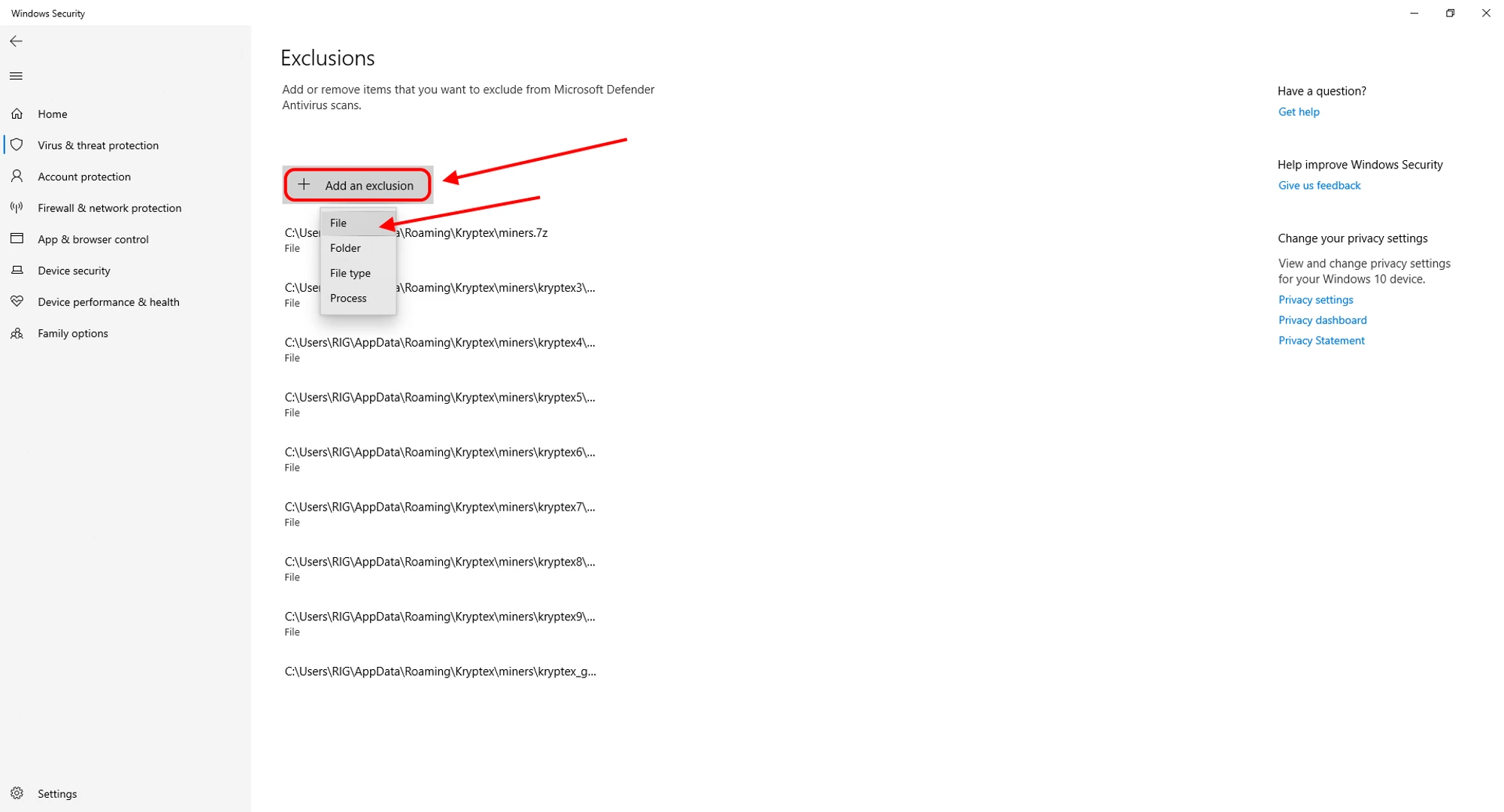
C:\Program Files\Kryptex%AppData%\Kryptex%AppData%\Kryptex\minersC:\Program Files\Kryptex\Kryptex.exeC:\Program Files\Kryptex\KryptexService.exeC:\Program Files\Kryptex\intelgpu-util.exeC:\Program Files\Kryptex\amdgpu-util.exe
Can’t find the AppData folder? View hidden system files and folders.
Need Help?
Have any questions, something is unclear, or you can't connect?
Contact support — we're happy to assist!
- Support Ticket.
- Telegram Support.
- Discord Support.
- Email support at support@kryptex.com.
